How to Allow Audio, Clipboard and Drive Redirection via Policy with Thinfinity® Workspace
Thinfinity Workspace enables you to configure remote connections with audio redirection, supports file transfers through its ThinDisk feature, and allows copy-paste operations between the remote desktop and your local computer.
To use these features, ensure that the appropriate Windows policies are active. This guide outlines the steps to verify and enable these features for proper functionality:
1. Open the Windows Group Policy Editor by navigating to Start > Run and typing
gpedit.msc.2. Go to Computer Configuration > Administrative Templates > Windows Components > Remote Desktop Services > Remote Desktop Session Host > Device and Resource Redirection. This will display the three setting options we will check to allow Audio Redirection, Clipboard Redirection, and Drive Redirection.
3. In this path, open the policy that corresponds to the feature you wish to enable.
Audio Redirection
Clipboard Redirection
Drive Redirection
Audio Redirection
Allow audio and video playback redirection
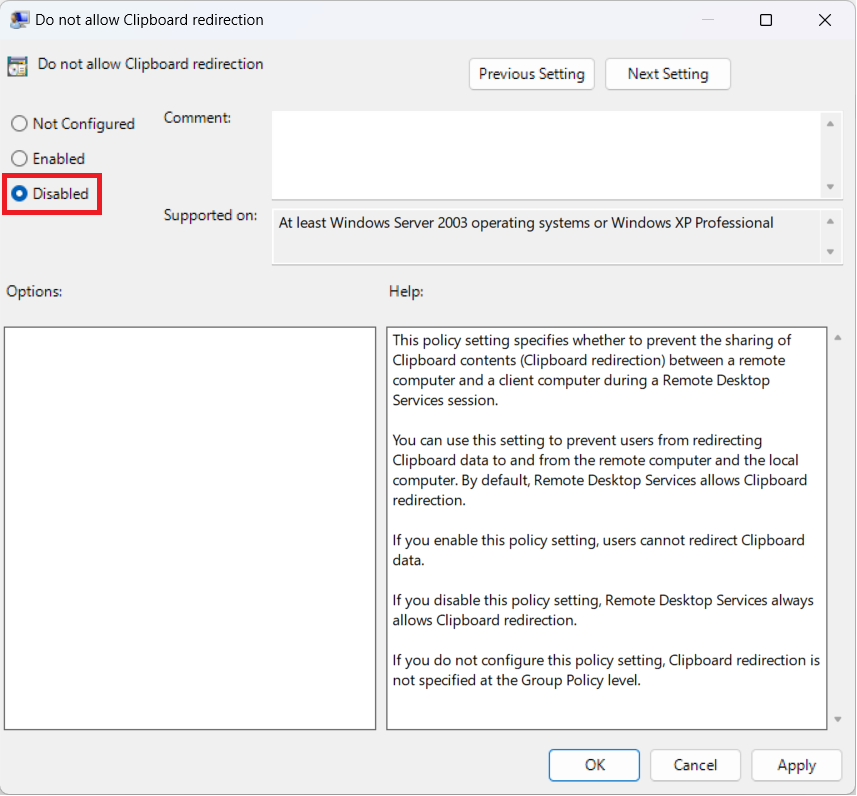
Clipboard Redirection
Do not allow Clipboard redirection
Drive Redirection
Do not allow drive redirection
3. Double click on the Policy and apply the configurations listed below. Apply the changes for them to take effect.
Audio Redirection
Clipboard Redirection
Drive Redirection
Audio Redirection
Check the Enabled Option
Clipboard Redirection
Check the Disabled Option
Drive Redirection
Check the Disabled Option
4. Open a Command Prompt window with Administrator privileges. Then call
gpupdate /force to update the modified group policies.After applying these changes, you may want to check that these options are enabled in the Profile Editor of Thinfinity Workspace Configuration Manager, as shown below: